I’d been waiting to put a Pixel Tablet through its paces because I keep thinking about the same question I hear from readers and fellow creators: “Is the new Pixel Tablet worth it for creative pros on a budget?” I tested it for a week as my primary sketching, photo-editing, note-taking and media-consumption device to see where it shines, where it compromises, and whether it truly gives creative work the space to breathe without breaking the bank.
First impressions and feel
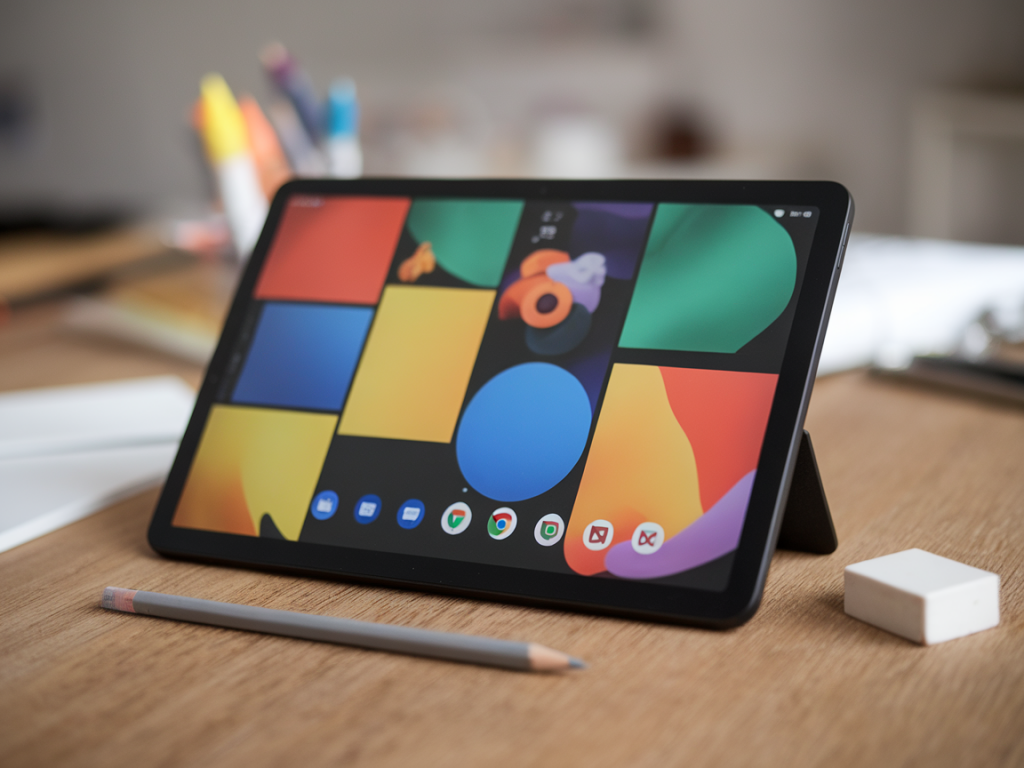
The Pixel Tablet arrives with a clean, minimalist design that feels familiar in Google's hardware family. It’s light but solid, with a matte back that resists fingerprints better than most glossy competitors. Out of the box I immediately appreciated how it balances portability and a comfortable screen size — big enough for drawing and layout work, small enough to tote to a coffee shop.
That said, “light” here doesn’t mean toy-like. You still sense the device is built with an eye toward productivity. The bezels are reasonably thin, the display has good color and contrast, and the magnetically attaching charging speaker dock (if you opt for the bundle) is a clever touch for hands-free reference and casual listening.
Display and pen experience
If you’re a creative pro, the screen and stylus are two decisive factors. The Pixel Tablet’s display is bright and renders colors accurately for general-purpose creative work — photo editing, vector sketching, and note-taking. It isn’t a professional-grade color-critical panel like some high-end iPads or dedicated drawing tablets, but the difference is smaller than you might expect at this price point.
For pen input, the Pixel Tablet is compatible with USI styluses. I tested with a third-party USI pen and the latency was acceptable for sketching and handwriting. There’s a perceptible but modest lag compared to flagship Apple Pencil on iPadOS; however, for most concept work, ideation, storyboarding, and annotations, it’s perfectly usable.
- Pros: Responsive, good tilt support with the right stylus, natural hand-on-screen behavior.
- Cons: Slight latency vs top-tier pens, no proprietary high-end stylus ecosystem (so results depend on the pen you choose).
Performance for creative apps
Under the hood the Pixel Tablet is built around a mid-range mobile chipset designed for balanced efficiency rather than raw power. In real-world creative use — Procreate-like sketching apps, Adobe Lightroom mobile, Affinity Photo on Android, and multiple Chrome tabs — it performed smoothly most of the time. Rendering a battery of 40-megapixel RAW images wasn’t instantaneous, but editing, cropping, and applying filters remained snappy.
Where it struggles is sustained heavy workloads: large layered files, complex 3D apps, or long multi-app video edits show the limits. For those tasks you’ll want a more powerful tablet or a laptop. But for concept sketches, client mockups, photo retouching, and mobile-first content creation, the Pixel Tablet is serviceable.
Software ecosystem and creative workflows
This is where I think buyers need to pay attention. Android’s tablet app ecosystem is better than it used to be, but it’s still not as mature as iPadOS when it comes to premium creative apps optimized for large screens. Adobe’s mobile apps are available and do a great job, and apps like Infinite Painter, Sketchbook, and Vectornator alternatives are solid. Still, some desktop-class tools and workflows don’t have exact feature parity on Android.
If your workflow relies on desktop-only plugins, advanced Photoshop features, or Apple-exclusive apps, the Pixel Tablet won’t replace a computer. But many creators I know use tablets as idea machines and sketchpads — they capture concepts, polish photos, annotate PDFs, and then hand off to a desktop for final polish. In that role, the Pixel Tablet is an excellent, affordable companion.
Battery life and daily use
Battery life was impressive for a day of mixed use: sketching sessions, editing photos, streaming a few hours of video, and an afternoon of web browsing. On a heavy day it didn’t quite hit two full days, but typical creative professional use should comfortably last you a full workday. The optional charging speaker dock is great for desk use — it keeps the tablet topped up while providing improved audio for client calls or reference videos.
Ports, expandability and accessories
The Pixel Tablet keeps things simple: a USB-C port and magnetic pogo connectors. There’s no microSD slot, so choose your storage option carefully. If you rely on a lot of local media, consider cloud storage or a workflow that includes tethering to a laptop or external drive.
- USB-C supports fast charging and file transfers.
- No proprietary keyboard folio currently matches the integration of Apple's Magic Keyboard, though third-party options exist.
- Magnetic charging dock is useful but sold separately in some markets — factor that into the price.
Camera, speakers and media
Two practical points: the front camera is well-positioned for video calls (centered in landscape), and the stereo speakers are surprisingly good for the price. If you do a lot of client presentations or record commentary while sketching, the audio quality is more than adequate. The rear camera is fine for quick reference photos and scanning sketches but not meant to replace a photographer’s gear.
Price and value proposition
This is the central question: does it offer real value for creative pros on a budget? I’d summarize it like this: the Pixel Tablet is not a powerhouse workstation, but it’s a well-rounded, affordable tablet that fills the gap between inexpensive consumer tablets and premium professional devices.
| Strengths | Weaknesses |
| Good display color and brightness for the price | Not as powerful as high-end iPad Pros or dedicated pen displays |
| Comfortable form factor and decent battery life | Android tablet app ecosystem still catching up |
| Affordable compared to flagship creative tablets | No proprietary high-end stylus; performance varies with third-party pens |
Who should consider the Pixel Tablet?
From my hands-on time, the Pixel Tablet is an attractive option for:
- Illustrators and concept artists who sketch, paint, and ideate on the go and finish on a desktop.
- Photographers who need a mobile device for quick edits and client previews, not for heavy batch RAW processing.
- Designers who prioritize portability and cost-efficiency and can work within Android’s app ecosystem.
- Students, hobbyists, and creators who want a capable tablet without the premium price tag.
It’s less suitable for:
- Professionals needing top-tier performance for 3D, long-form video editing, or massive layered PSDs.
- Users tied to macOS/iPadOS-exclusive apps and workflows.
Final thoughts from my workflow
I used the Pixel Tablet alongside a laptop rather than as a laptop replacement. For that hybrid workflow it shone: fast ideation, tidy photo edits, and an enjoyable drawing surface when paired with a good USI pen. If you’re on a budget but refuse to compromise creativity, it’s a very compelling middle ground. If you demand the absolute fastest UI, deepest app ecosystems, or color-calibrated displays out of the box, you’ll either need to accept the trade-offs here or stretch your budget toward more premium hardware.
For detailed comparisons and workflow tests (battery cycles, stylus latency measurements, app-specific benchmarks) I’ll be posting follow-ups on Websauna Co at https://www.websauna.co.uk — drop a line on the contact page if there’s a specific test you want me to run.