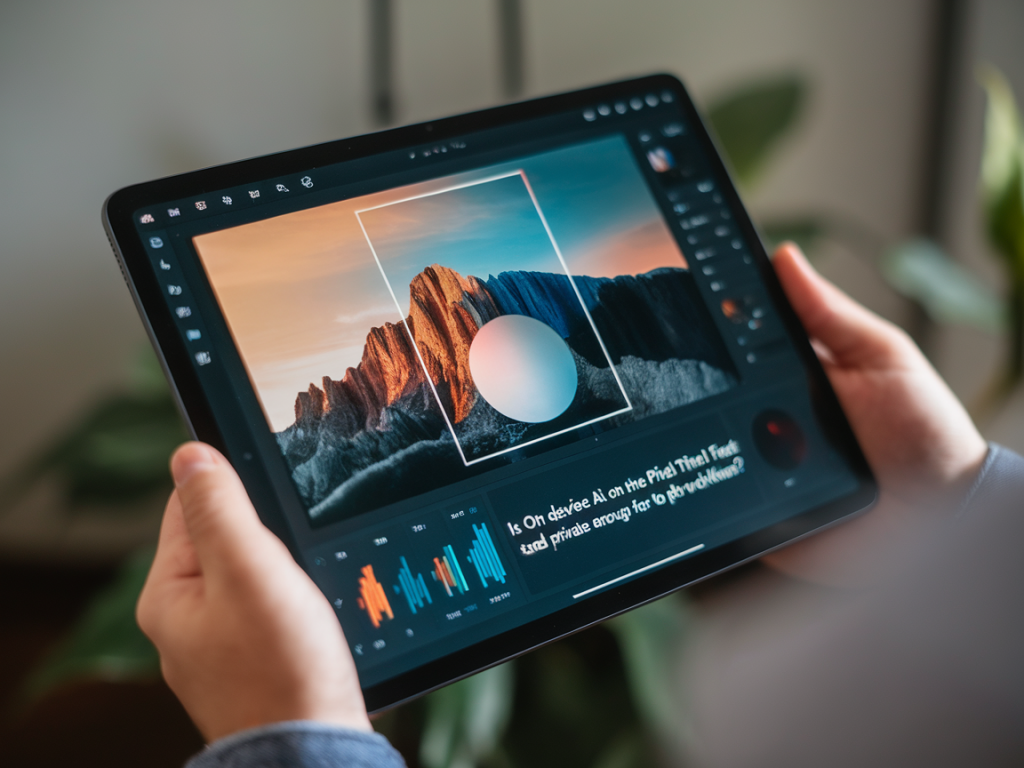
I spent the last few weeks pushing a Pixel Tablet through a set of pro-photography chores: rapid culling, raw adjustments, masked edits, and a handful of “magic” fixes that promise to save time. My aim was simple: figure out whether the Pixel Tablet’s on-device AI is fast and private enough to be a serious tool in a professional photo workflow—or whether it’s still mainly a handy toy for quick fixes.
What I mean by “on-device AI” for photography
When I say on-device AI, I’m referring to image processing or editing features that run locally on the tablet’s silicon (Tensor G2 in the Pixel Tablet) rather than being sent to cloud servers. That includes things like automatic subject selection, masking, noise reduction, and some of Google’s “Magic Editor” style transformations when they’re available locally. On-device processing should reduce latency, preserve privacy, and remove dependence on connectivity.
Speed: real-world responsiveness vs heavy lifting
In day-to-day tasks—scrolling through batches of images, tapping to create a mask, or applying quick tone and exposure adjustments—the Pixel Tablet feels snappy. The tablet’s Tensor G2 handles UI-side tasks and lightweight neural operations without visible lag, which is what matters most when you’re culling hundreds of frames after a shoot.
However, there are two important caveats:
The Pixel Tablet is optimized for consumer and prosumer edits, not high-volume studio pipelines. Expect occasional pauses or longer processing times when you push big RAW files or batch-export hundreds of images.Thermal limits and sustained performance. Mobile SoCs are efficient but constrained by thermal dissipation. The Pixel Tablet can process aggressively for a while, but continuous heavy exports—like applying complex local edits to 200 RAWs—will see throttling. Workloads that can be parallelized on a desktop GPU will still be faster on a workstation.Put another way: for on-location work, client previews, tethered culling, and single-image retouching, the Pixel Tablet’s AI-assisted features give a responsive, near-real-time experience. For overnight batch exports, you’ll still want a desktop or cloud-rendering pipeline.
Accuracy and pro-level control
There are two axes here: the quality of the AI’s decisions (how good the mask, remove, or sky replace is) and the control you have to refine those decisions.
Masking and selection: Google’s local models do a very good job with subjects and edges in well-lit images. They can save minutes compared to manually drawing masks. But masks occasionally miss hair or fine details—especially in tricky lighting—so you need tools to refine them precisely.Color and tone: On-device editing tools on the Pixel Tablet are convenient, but they don’t always offer the deeper color profiling that pro workflows require. If your pipeline depends on absolute color accuracy, support for camera-specific color profiles, or tight integration with LUTs and soft-proofing, a desktop RAW editor (Capture One, Lightroom Classic, DxO) remains necessary.RAW handling: Some mobile apps support RAW on Android well; others still convert RAW to DNG/linearized versions for editing. The Pixel Tablet can edit RAWs, but complex demosaicing choices and extended color management options are usually more limited than professional desktop tools.Privacy: what on-device processing actually protects
This is where on-device AI shines conceptually. If the model inference and data stay on the device, your images don’t need to leave your hardware. That reduces exposure to cloud storage risks and to models being trained on your images without explicit consent.
Some concrete points to check and keep in mind:
Local inference: Google’s Pixel devices and Pixel Tablet are designed so many computational photography features run locally on Tensor. That’s a privacy win when those features are all you use.Cloud fallbacks: Not all “smart” edits are purely local. Certain heavy operations, or features labeled as “Magic” or “Generative,” might use cloud infrastructure—or have optional cloud quality improvements. Always check the app’s privacy disclosures and the in-app prompts that mention uploading to Google servers.Google account settings: Google Photos and related features can enable cloud backup, “helpful” suggestions, or usage data collection. I recommend auditing Settings → Google Photos → Backup & sync, and toggling features like “Use your photos to improve Google products” if you want to lock processing down to the device.Hardware security: The Pixel Tablet’s Tensor G2 platform includes Titan security coprocessors (Titan M2 in later Pixel hardware). That helps keep keys and credentials safe on-device, which matters if you store unencrypted RAWs or use local vault features.Workflow scenarios where the Pixel Tablet works well
Tethered location shoots: Use the Pixel Tablet as a fast review machine for clients or art directors. Quick masks, exposure fixes, and selective edits look great in a live review context.On-the-go selects and proofs: Rapidly cull and prepare a proof set with AI-assisted selection and batch lightweight edits; you can export client-ready JPGs without moving to a laptop.Retouching single images: For social posts, portfolios, and editorial quick-turn edits, the on-device tools are remarkably capable.When to avoid relying solely on the Pixel Tablet
High-volume batch processing and tethered studio workflows—desktop or cloud render farms win here.Color-critical commercial work that requires LUTs, camera profiles, and soft-proofing for print or color-managed pipelines.Complex compositing and retouching that demand pixel-level control, custom brushes, healing operations, or Photoshop-style layer workflows—those are still more efficient on powerful desktops with larger apps.Apps, settings, and practical tips
Here are things I changed during my tests to push the Pixel Tablet into a professional-friendly tool:
Use apps that support offline/ local editing. Adobe Lightroom Mobile has good local-only editing modes; Snapseed is fully local. Google Photos often offers smart edits but check which features use cloud resources.Keep storage healthy. Performance degrades when internal storage is near capacity—free space helps with swap and temporary cache for models.Export in small batches. Break exports into groups of 20–50 images if you need speed and want to avoid thermal throttling.Turn off unnecessary syncs. Disable automatic cloud backup during intensive editing sessions to prevent background upload throttling and accidental data transfer.Use a dedicated RAW workflow when you need precision. Move initial selects and quick edits to the Pixel Tablet, and then finish critical jobs on a color-calibrated desktop.How to test it yourself
If you’re considering the Pixel Tablet for pro work, here are simple, reproducible checks you can run:
Import a handful of 45–60 MB RAW files, make identical masked edits, and time the edit-to-export latency for each.Apply a complex automated subject selection and check mask boundaries—zoom to 200% and examine hair, fur, and fine edges.Enable and then disable cloud features in the apps and see which edits still function offline.Run a batch export of 100 images and watch for throttling or thermal-induced slowdowns—measure time and note any temperature warnings.Overall, the Pixel Tablet’s on-device AI can be a practical, privacy-friendly assistant in many parts of a pro photographer’s workflow—especially on location. It doesn’t replace a color-managed desktop pipeline for final output, high-volume processing, or the most exacting retouching, but it answers an important question: can a tablet today do meaningful, private AI-assisted photo work? In many real-world cases, the answer is yes—if you know its limits and plan your workflow accordingly.